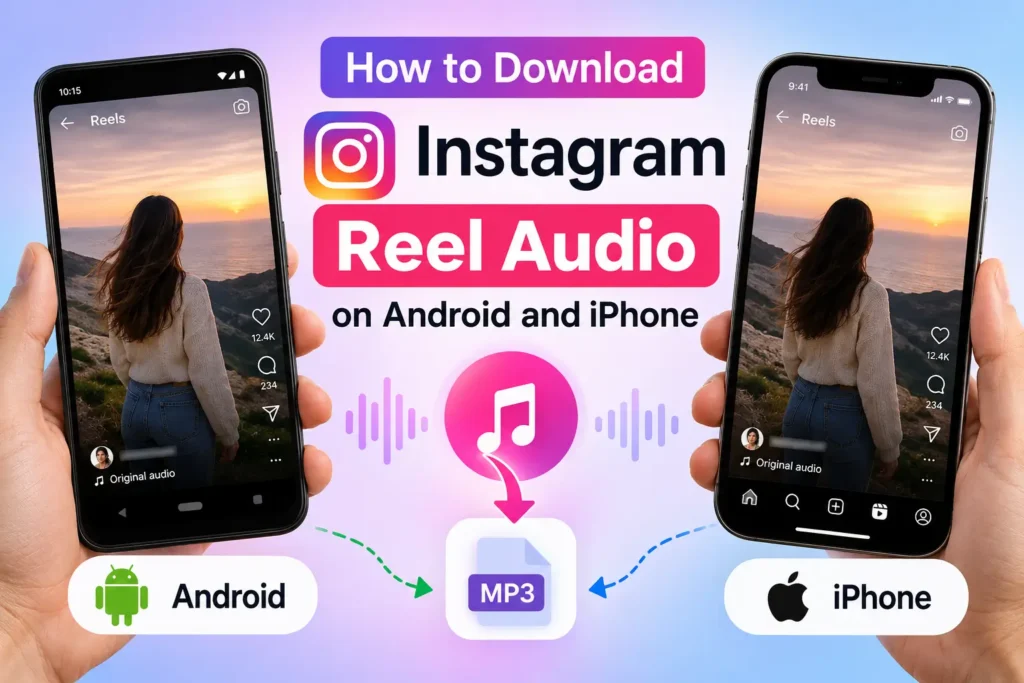
How to Download Instagram Reel Audio on Android and iPhone
If you want to save the audio from an Instagram Reel as a file on your phone, the process is simple on both Android and iPhone. Copy the link to the public Reel, paste it into an Instagram audio downloader, and save the available audio file to your device.
This is different from Instagram’s Save Audio feature. Saving audio keeps the sound available inside Instagram, while downloading it allows you to access the audio file through your phone’s storage.

Save Instagram Reel Audio or Download It: What’s the Difference?
Instagram offers a built-in option to save audio from a Reel. This can be useful when you want to find that sound later and use it while creating your own content.
However, Save Audio does not download an MP3 file to your phone.
If you want to listen to the audio outside Instagram or keep a file on your device, you need to use a supported download method.
| If you want to… | Best option |
| Use the sound in a future Instagram Reel | Save Audio in Instagram |
| Find the sound later inside Instagram | Save Audio |
| Keep an audio file on your phone | Download the available audio |
| Access the file through your device storage | Download the available audio |
Once you know which option you need, the next steps depend slightly on whether you use Android or iPhone.
How to Download Instagram Reel Audio on Android
You can complete the entire process from your Android phone without transferring the Reel to another device.
1. Find the Reel You Want to Save
Open Instagram and find the Reel containing the audio you want.
Before copying the link, make sure the Reel opens and plays normally. If the content has been deleted, restricted, or belongs to a private account, it may not be available for processing.
2. Copy the Reel Link
Tap the Share icon on the Reel. Depending on the version of Instagram you are using, you may also find sharing options through the Reel menu.
Select Copy Link to copy the URL to your clipboard.
3. Open Reels Audio Downloader
Open Chrome or another browser on your phone and visit your preferred Instagram audio downloader.
Paste the copied Reel URL into the download box.
4. Process the Reel
Start the process and wait for the tool to read the public link.
If the URL is valid and the content is supported, the available audio can be prepared for download.
5. Save the Audio File
Choose the available download option and allow your browser to save the file.
You usually do not need to install an additional app for this process.
6. Find the Downloaded Audio
If the file does not immediately appear in your notification or browser download list, open your phone’s Files or File Manager app.
The audio is commonly stored in the Downloads folder, although the exact location can depend on your browser settings.
How to Download Instagram Reel Audio on iPhone
The basic process on an iPhone is similar, but accessing the downloaded file can be slightly different.
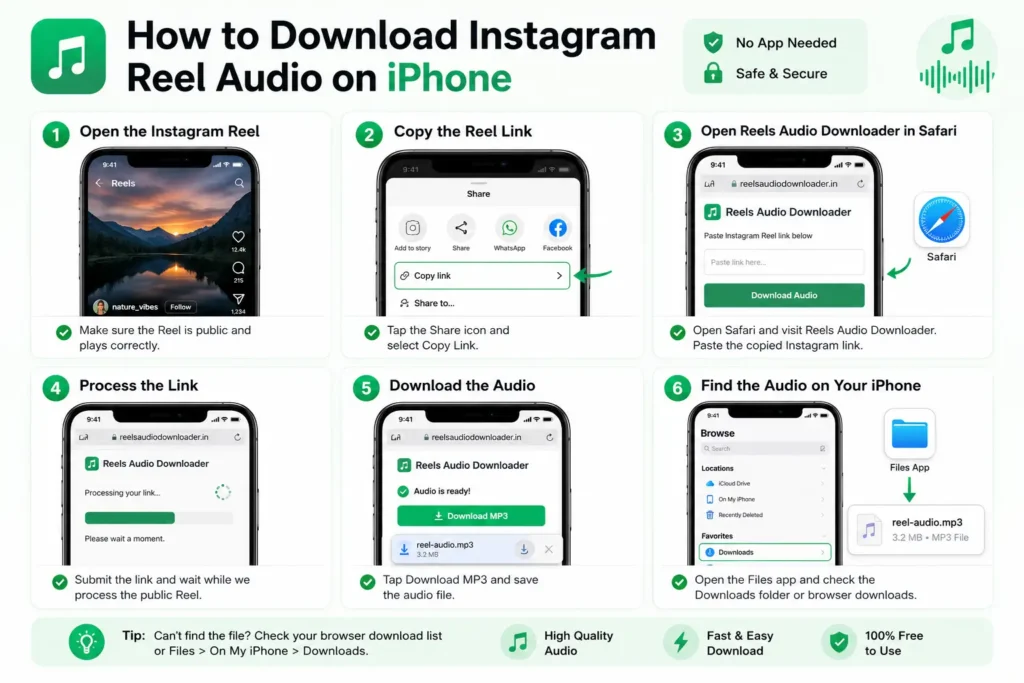
1. Open the Instagram Reel
Find the public Reel containing the sound you want to save.
Check that the Reel is still available and plays correctly before copying its link.
2. Copy the Reel Link
Tap the Share icon and select Copy Link.
This copies the URL of the specific Reel to your clipboard.
3. Open Reels Audio Downloader in Safari
Open Safari and visit Reels Audio Downloader.
Paste the copied Instagram link into the input field.
You can also use another supported browser, but Safari is commonly used for downloading files on an iPhone.
4. Process the Link
Submit the URL and wait for the tool to process the supported public Reel.
If the link cannot be processed, first check whether you copied the complete URL and whether the Reel is publicly accessible.
5. Download the Audio
When the download is ready, save the available audio file.
Your browser may show a download indicator or provide an option to open the downloaded file.
6. Find the Audio on Your iPhone
Open the Files app if you cannot immediately locate the file.
The exact location depends on your browser and download settings. You may find it in your Downloads location or by opening the browser’s download list.
Where Is Downloaded Instagram Reel Audio Saved?
The location of a downloaded file is determined by your device and browser settings.
On Android
Most Android browsers save downloaded files in the Downloads folder.
You can check:
Files or File Manager → Downloads
If you changed your browser’s default download location, the file may be stored elsewhere.
On iPhone
On an iPhone, downloaded files are generally accessible through the Files app.
You can also check your browser’s download section to locate a recently downloaded file. The exact folder may vary depending on your configured download location.
Why Is My Instagram Reel Audio Not Downloading?
If a Reel link does not work, the issue is often related to the content itself or the link you copied.
The Account Is Private
A public-link downloader can only process content that is publicly accessible. If the Reel belongs to a private account, the content may not be available through the link.
The Reel Is No Longer Available
The Reel may have been deleted, removed, or restricted since it was originally posted.
Try opening the copied link in your browser. If the Reel itself is unavailable, the audio cannot be retrieved from it.
The Link Was Not Copied Correctly
An incomplete or incorrect URL can prevent the tool from identifying the Reel.
Return to Instagram, copy the link again, and paste the complete URL.
The Audio Is Restricted or Unavailable
Some Reels contain audio that may have availability restrictions. The audio you hear inside Instagram may not always be available through every download method.
This is particularly important when the Reel uses music or sounds that are subject to licensing or regional restrictions.
There Is a Temporary Processing Issue
Sometimes the problem is temporary.
Try refreshing the page, checking your internet connection, and submitting the link again. If necessary, open the tool in another supported browser.
Why Does a Downloaded Reel Have No Sound?
If a Reel plays with sound on Instagram but the downloaded result does not contain the audio you expected, first check the source Reel again.
Reels can contain original audio, creator voiceovers, music, or other sound elements. The availability of those elements can vary, particularly when music is restricted or unavailable.
Copying the link again and retrying may help if the problem is temporary. If the audio itself cannot be accessed from the available source, the downloaded result may not include it.
Do You Need an App to Download Reel Audio?
No additional app is necessarily required.
A browser-based tool allows you to paste a supported public Instagram link directly from your phone. This means you can complete the process using Instagram and your preferred browser without installing separate software or a browser extension.
You can use Reels Audio Downloader to process supported public Instagram links and save the available audio in MP3 format.
Is the Process Different on Android and iPhone?
The main steps are almost identical. On both devices, you copy the Reel link, open a browser-based downloader, paste the URL, and save the available file.
The main difference is how the downloaded file is accessed afterward.
| Step | Android | iPhone |
| Copy Reel link | Instagram sharing options | Instagram sharing options |
| Open downloader | Chrome or another browser | Safari or another browser |
| Process public Reel | Yes | Yes |
| Download available audio | Yes | Yes |
| Find the file | Files/File Manager, usually Downloads | Files app or browser download location |
Frequently Asked Questions
Save Instagram Reel Audio to Your Android or iPhone
Downloading audio from a public Instagram Reel starts with copying the correct link. From there, you can open Reels Audio Downloader in your mobile browser, paste the URL, and save the available file.
On Android, check your Downloads folder after saving. On iPhone, use the Files app or your browser’s download section to locate the file. If the link does not work, check that the Reel is public, available, and copied correctly.
Always make sure you have the appropriate rights or permission before reusing, sharing, or distributing audio created by someone else.