How to Add Music to Instagram Reels: Step-by-Step Guide
Want to make your Reel more engaging with a song or background track? Learning how to add music to Instagram Reels is simple once you know where the music option is and how to adjust the audio.
You can choose a song from the built-in music library, use eligible audio from another Reel, or add your own original sound. If you come across a track you want to save for later, an instagram audio downloader can help with eligible public Reel audio. You can also use the reel save audio option inside Instagram when you simply want to bookmark the sound for future use.
You can also select the exact part of a song you want to play and adjust the balance between music, recorded audio, and voiceover.
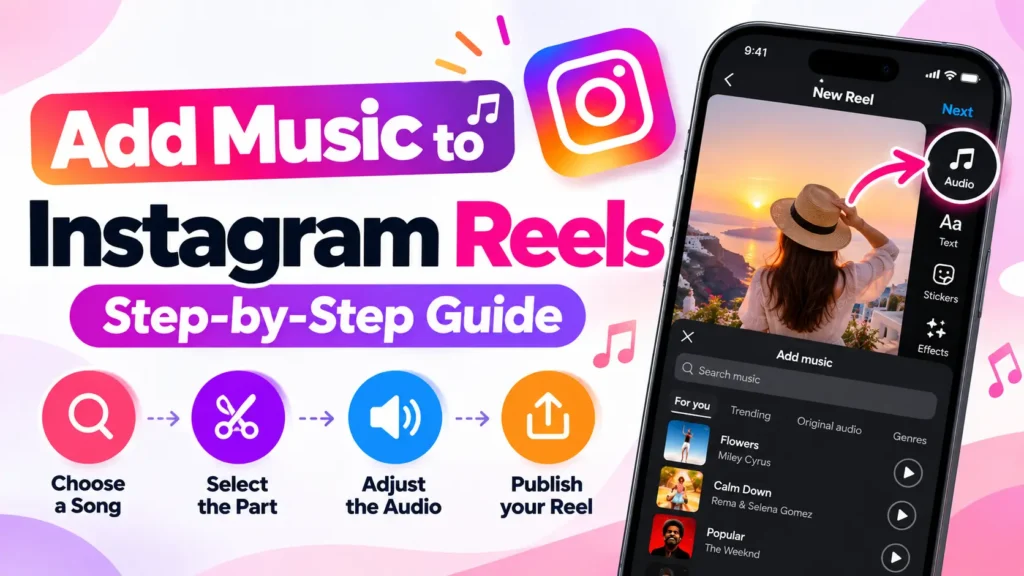
This guide explains the different ways to add music and what to do if you can’t find the song you want.
How to Add Music to Instagram Reels
The easiest method is to add music while creating or editing your Reel.
Follow these steps:
- Open Instagram and start creating a new Reel.
- Record a video or select one from your phone’s gallery.
- Tap the Music or Audio option.
- Search for a song or browse the available music.
- Select the track you want to use.
- Choose the part of the song you want to play.
- Adjust the audio levels if necessary.
- Preview the Reel.
- Add your caption and other details.
- Publish the Reel.
The exact buttons can vary slightly depending on your app version and device, but the basic process remains similar.
How to Choose a Song From the Music Library
The built-in music library is the simplest option when you want to add a popular song to your Reel.
After opening the music selection tool, you can search by:
- Song name
- Artist
- Album
- Music category
- Suggested tracks
- Popular or trending sounds
Once you find a track, preview it before adding it to your video.
Pay attention to the section of the song that you select. You don’t necessarily have to use the beginning of a track. You can usually choose the portion that fits the moment you want to highlight.
For example, if your video has a transition, you might choose a part of the song with a strong beat. For a travel video, you may prefer a calmer section.
How to Add Music to a Reel From Another Reel
You may also discover a song while watching another Reel.
If the audio is available for reuse, tap the audio name displayed on the Reel. This can take you to the audio page, where you may have an option to use the same audio when creating your own Reel.
This is useful when you don’t know the song title but have already found a Reel using it.
Before using the track, check that it is available for your account and intended use.
If you want to understand the difference between music-library tracks and creator-uploaded sound, see our Original Audio guide.
How to Add Music After Recording a Reel
You don’t always have to select music before recording your video.
You can record or upload your video first and then add a soundtrack during the editing stage.
This is useful when the visuals are already finished and you want to choose music afterward.
The general process is:
- Create or upload your Reel.
- Open the editing screen.
- Select the music or audio option.
- Search for your preferred track.
- Add the song.
- Select the section you want.
- Adjust the volume.
- Preview the finished Reel.
This approach lets you choose music based on the final timing of your video rather than trying to plan everything beforehand.
How to Adjust Music and Original Audio
Adding music doesn’t mean you have to completely remove the sound recorded with your video.
If your Reel contains talking, background noise, or other original audio, you can adjust the balance between the different audio sources.
For example:
Music: Keep it low enough that it doesn’t cover speech.
Original audio: Increase it when the natural sound is important.
Voiceover: Give it priority when you’re explaining something.
This is especially important for tutorials, reviews, educational videos, and talking-head content.
A good mix makes the Reel easier to understand while still giving it the atmosphere you want.
How to Add Voiceover With Background Music
You can combine background music with a voiceover when creating certain types of Reels.
This works particularly well for:
- Tutorials
- Travel videos
- Product demonstrations
- Storytelling
- Educational content
- Step-by-step guides
The important part is volume balance.
If the music is too loud, viewers may struggle to understand your voice. If it is too quiet, it may not contribute much to the video.
Preview the entire Reel before publishing and listen specifically to the sections where you are speaking.
How to Add Your Own Audio to a Reel
Instead of selecting a song from the music library, you can also create a Reel using your own sound.
This could include:
- Your voice
- Recorded background sounds
- Original music
- Sounds captured while recording
- Other audio you have permission to use
This is different from selecting a track from the built-in music library.
If you already have an audio file saved on your device and want to use it in a Reel, see our guide on using downloaded audio in Instagram Reels rather than repeating that complete process here.
Can You Add Music to an Existing Reel?
The available editing options depend on the Reel and the features currently provided for your account.
Adding music is easiest before publishing because you can check the complete audio mix before the Reel goes live.
If an already-published Reel has an audio problem, don’t assume that simply adding another song will always be possible. Published content can have different editing options from a Reel that is still being created.
If the original soundtrack has disappeared or become unavailable, see our guide about why Reel audio gets removed.
Why Can’t I Find a Song in the Music Library?
Sometimes the song you’re searching for won’t appear.
There are several possible reasons:
- The track isn’t available in your region
- The music license doesn’t cover your location
- Your account type has different music access
- The song has been removed or changed
- The track isn’t currently available for your type of content
- You may be searching for an incorrect song title or artist
Try searching using both the song title and artist name.
If you still can’t find it, check whether another recent Reel is using the same track. If other users can access it but you cannot, account or regional availability may be involved.
Why Is the Music Option Missing?
If you don’t see a music or audio option when creating a Reel, first check whether you’re using the latest version of the app.
You can also:
- Close and reopen the app.
- Check for an available update.
- Try creating another Reel.
- Check whether audio options appear on another account, if available.
- Check your account type and music availability.
Don’t immediately assume that the feature has been permanently removed. App interfaces and available features can change over time.
Can You Add Any Song to a Reel?
Not necessarily.
Music availability depends on licensing and other restrictions. A song being available on a streaming service does not automatically mean it can be used in every type of social media content.
You should use music that is available to you through the platform or audio that you have the necessary rights or permission to use.
This is especially important for commercial, promotional, or business content.
Can You Use Downloaded Music in a Reel?
Yes, there are workflows for using an audio file that you already have on your device, but that is a different process from selecting music directly from the built-in library.
If you’re specifically trying to import an audio file into a Reel, follow our guide on using downloaded audio in Instagram Reels.
Also remember that having an audio file does not automatically give you permission to use copyrighted music in your content.
What Happens If the Music Gets Removed Later?
A song can sometimes become unavailable after a Reel has already been published.
This can happen because of licensing changes, regional restrictions, account limitations, or changes involving the original sound.
Your video may remain online while the soundtrack becomes unavailable.
If that happens, check our guide on why Reel audio gets removed for the possible causes and available solutions.
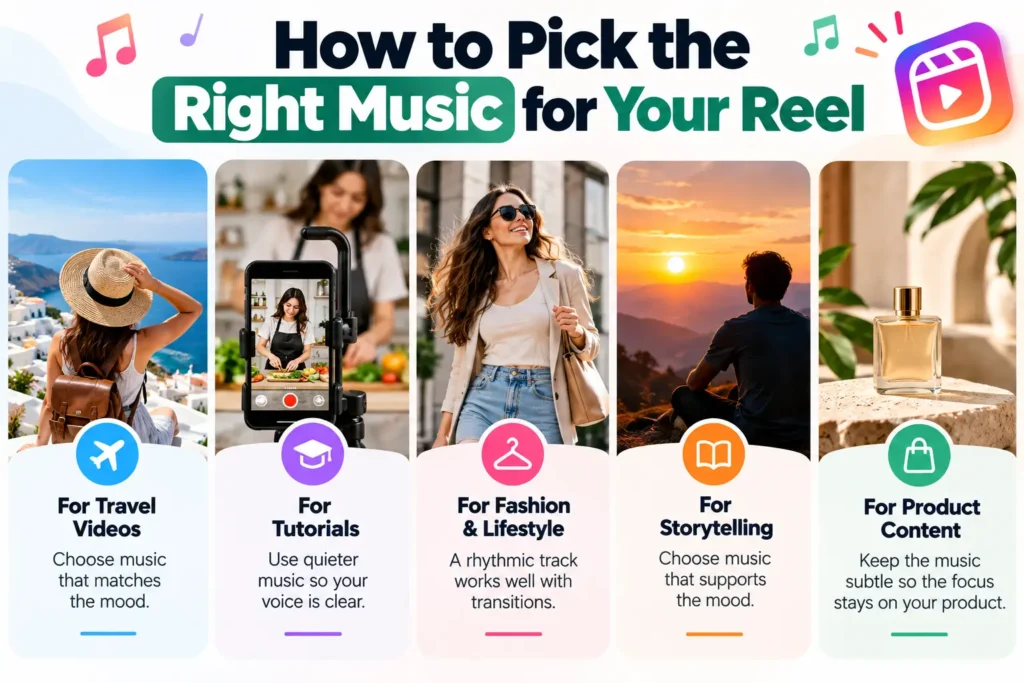
How to Pick the Right Music for Your Reel
The right song depends on the type of content you’re creating.
For travel videos
Choose music that matches the mood and pace of the footage.
For tutorials
Use quieter background music so the instructions remain easy to hear.
For fashion or lifestyle content
A rhythmic track can help match transitions and visual changes.
For storytelling
Choose music that supports the mood without distracting from narration.
For product content
Keep the music subtle enough that viewers can focus on the product and explanation.
The best soundtrack isn’t necessarily the most popular one. It should fit the video’s purpose.
How to Match Music With Reel Transitions
Music can make visual transitions feel smoother.
One simple technique is to place a transition near a noticeable beat in the selected track.
For example:
Beat → scene change → beat → next scene
You don’t need complicated editing to achieve this. Even simple cuts can feel more intentional when they match the rhythm of the soundtrack.
Before publishing, watch the Reel several times and check whether the music and visual changes feel synchronized.
Can You Add Music Without Removing Your Original Sound?
In many cases, you can combine music with the original audio rather than completely replacing it.
This is useful when the video contains:
- Talking
- Environmental sounds
- Reactions
- Instructions
- Voiceover
- Live event audio
Adjust the levels so that each important part can still be heard.
For a talking video, your voice should generally remain clear rather than being buried beneath the soundtrack.
What If You Want to Save the Music Instead?
Adding music to a Reel and downloading Reel audio are two different tasks.
If you’re trying to identify or save a track from an existing Reel, don’t confuse that process with adding music while creating your own video.
For an existing Reel whose audio is still accessible, you can explore appropriate audio-saving options. Always make sure you have the necessary rights before reusing downloaded music.
Frequently Asked Questions
Final Takeaway
Adding music to a Reel is usually straightforward: create or upload your video, choose an available track, select the part you want, adjust the audio balance, and preview everything before publishing.
The built-in music library is usually the easiest option, but you can also work with eligible audio from other Reels or use your own sound.
If you plan to use an external audio file, make sure you understand the separate importing process and have the necessary rights to use the music. This helps you avoid audio restrictions later and gives you more control over your finished Reel.