How to Use Downloaded Audio in Instagram Reels
Have an audio file saved on your phone and want to add it to a reelsaudio? You can import a saved sound into the editing workflow, position it with your video, and adjust the timing before publishing. Recent versions of the app may show an Import option in the audio picker, although the exact layout can vary between devices and versions.
Whether you downloaded an M4A file, saved a voice recording, or have another compatible audio track on your phone, the process is fairly simple once you know where the file is stored.
Add a Downloaded Audio File to Your Reel
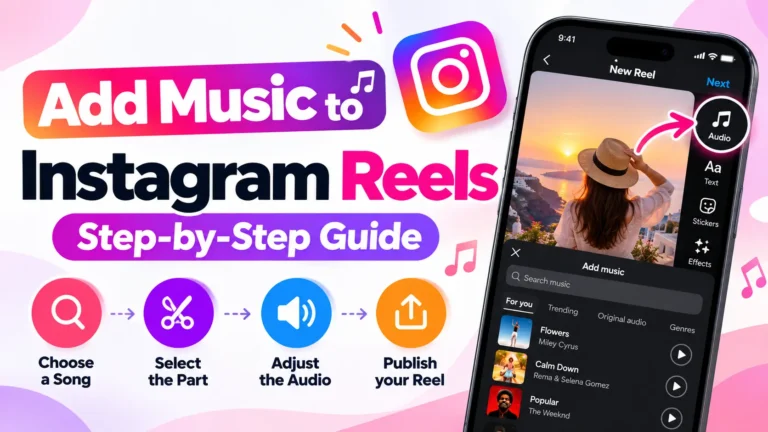
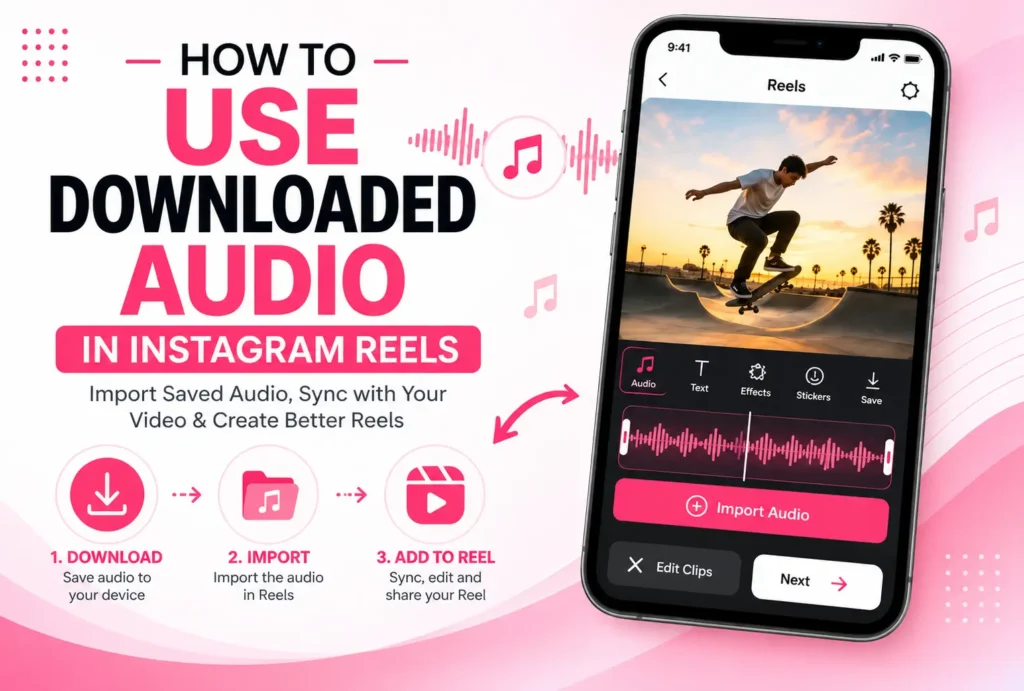
Start by opening the app and creating a new Reel. Add or record your video, then open the audio controls from the editing screen.
Look for Import or a similar option in the audio picker. Current guides show that this can allow you to choose audio from your device rather than selecting a track from the built-in music library.
Select your saved file and let it load into the project. Once it’s added, preview the video and move the audio so the important parts match the visuals.
You can then trim the section you need and adjust the audio levels before continuing with the rest of your edits.
Check the Audio File Before You Start
Before opening the editor, make sure the sound is actually saved on your phone. A file downloaded through a browser may be located in Downloads, while files transferred from another app can appear somewhere else in your device storage.
It is also worth playing the recording once before importing it. Check for unwanted silence, low volume, or sections you don’t need. Preparing the file first can make the editing process much quicker.
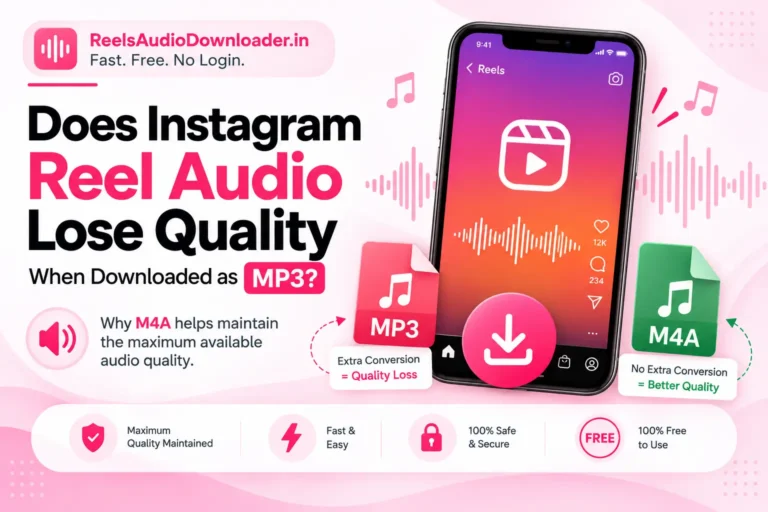
Pay attention to the format as well. If your file is already M4A and the editing workflow accepts it, there is usually no reason to convert it to MP3 just for the sake of changing formats.
Find Your Saved Audio on Android
On Android, downloaded recordings are commonly found in the Downloads folder or through the phone’s file manager.
When the audio picker opens your device storage, navigate to the folder containing the recording and select it. After importing, play the project from the beginning to make sure the sound has been added correctly.
If you can’t find the file, open your file manager separately and locate it first. This confirms where the recording is stored and makes it easier to select when you return to the editing screen.
Android menus can differ between manufacturers, so the folder names and file-management interface may not look identical on every phone.
Locate the File on iPhone
On iPhone, downloaded audio is commonly managed through the Files app. Depending on how the recording was saved, check locations such as Downloads, On My iPhone, or iCloud Drive.
Find the audio file before starting the import process. This makes it easier to recognize the correct recording when the device’s file picker appears.
If you downloaded the file through Safari, the Downloads folder is a good place to check first. If it was transferred from another application, it may have been saved somewhere else within Files.
Sync the Sound With Your Video
Once the audio is in your project, the next step is getting the timing right.
For speech or dialogue, position important words alongside the relevant visual moment. If you’re using music or a sound effect, you might want a beat, transition, movement, or other action to happen at a specific point.
You don’t have to use the entire recording. Trimming the audio to the most useful section can make the final video feel cleaner and prevent unnecessary silence or unrelated material from playing.
Preview the result several times after making adjustments. Even a small timing change can make the sound feel much more connected to the visuals.
What If the Import Option Isn’t Available?
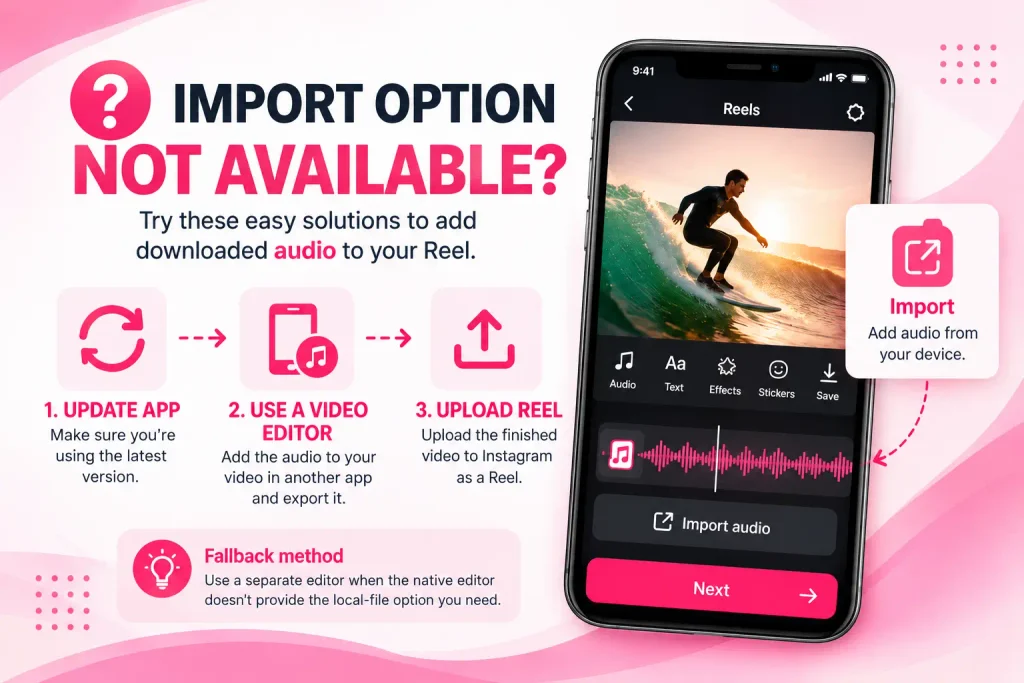
If you don’t see Import in the audio controls, first check whether your app is updated. Current interfaces can change, and not every device or account necessarily displays identical editing options.
Another option is to add the downloaded sound to the video with a separate mobile editing application. You can combine the video and audio there, export the finished file, and then upload the result as a Reel.
This fallback is useful when the native editor doesn’t provide the local-file option you need.
If your problem is actually that the sound file wasn’t saved correctly in the first place, see our guide on why Instagram Reel audio is not downloading.
Using M4A Audio in Your Reel
M4A is a container that can hold different types of encoded audio, including AAC. If your downloaded file is already in M4A, keeping it in that format can be preferable when your editing workflow supports it.
Converting a compressed audio file to MP3 introduces another encoding step. That conversion cannot restore information that was already lost in the original source, so converting simply because MP3 is familiar isn’t necessarily an improvement.
However, M4A does not automatically mean lossless or higher-quality audio. The actual quality depends on the codec, bitrate, and original recording.
For this reason, the better approach is to keep the available source quality intact and avoid unnecessary conversions whenever possible.
Downloaded Audio vs. Music From the App
A downloaded audio file is different from a track selected through the built-in music library.
Library tracks are provided through the platform’s own audio system and may be subject to licensing, regional availability, and account-related restrictions. A saved file, meanwhile, is simply audio stored on your device.
Importing that file doesn’t turn it into a library track or change the rights attached to the recording. This distinction matters when the sound originally came from another creator or contains copyrighted music.
If you’re downloading audio specifically so you can work with the original file on your phone, you can follow our guide to download Reel audio on Android and iPhone.
Copyright and Usage Rights
Being able to import a recording doesn’t automatically give you permission to publish it.
If the sound belongs to another creator, musician, or rights holder, consider whether you have permission to use it for your intended purpose. This is particularly important when the finished video is being used for advertising, promotion, or another commercial activity.
Audio that you created yourself or have appropriate rights to use is generally much simpler to work with.
Downloading a file and importing it into a video are technical steps; they don’t change the copyright status of the underlying recording.